Showing posts with label iPhone. Show all posts

Monday, February 19, 2018

CoolStar seeds Electra RC 1.3 to developers

The Electra jailbreak tool has been in beta since it came to fruition in mid-January, but CoolStar changed that this week after seeding a limited developer-only release of Electra RC 1.
On Saturday, he pushed yet another developer-only build dubbed Electra RC 1.3. The revised jailbreak tool adds support for an iOS 11-compatible version of Ryan Petrich’s RocketBootstrap utility, among other things.
Electra RC 1 and RC 1.3 are developer-only releases at this point in time because they each include a patched version of Cydia that works on iOS 11. Several odds and ends still need polishing before it’s entirely ready for the general public, so the limited release gives both developers and repositories ample time to get everything prepared.
Notably, an unnamed jailbreak tweak developer is said to have leaked the original Electra RC to non-developers in the community over the weekend. As if this wasn’t troublesome enough, the leaked build contains unreliable software:
CoolStar advises anyone with interest in jailbreaking iOS 11 with the final release of Electra to steer clear of the leaked build. Running it instead of waiting for CoolStar’s official public version has the potential to damage your device or to make your jailbreak unstable.
In a final set of Tweets shared on Saturday, CoolStar announced his disinterest with iOS and many of Apple’s latest handsets. Consequently, iOS 11 will be the last version of Apple’s mobile operating system that CoolStar releases a jailbreak for – a last hoorah of sorts:
Given the pace at which CoolStar has been flying through things, it shouldn’t be long before everyone gets a chance to jailbreak iOS 11.0-11.1.2 with access to a functioning Cydia app. For those still waiting, patience is a virtue.
Will you use Electra to jailbreak iOS 11.0-11.1.2 once the Cydia-bundled version officially hits the public? Share in the comments below.

Source - iDownloadblog

Saturday, May 21, 2016

Apple in India (Hyderabad)!!!

Good news for indian Apple Developers!

Apple has announced the opening of a new office in Hyderabad that will focus on development of Maps for Apple products, including iPhone, iPad, Mac and Apple Watch. The investment is said to accelerate Maps development and create up to 4,000 jobs.

“Apple is focused on making the best products and services in the world and we are thrilled to open this new office in Hyderabad which will focus on Maps development,” said Tim Cook, Apple’s CEO. “The talent here in the local area is incredible and we are looking forward to expanding our relationships and introducing more universities and partners to our platforms as we scale our operations.”

The new facility, located on the Waverock campus, will provide a world-class, LEED-certified home for the expanding Maps team.

“We are honored Apple chose Hyderabad as a home for its Maps development office,” said Telangana Chief Minister Kalvakuntla Chandrashekar Rao. “This will create thousands of jobs here and is a testament to our proactive approach, quality infrastructure and the excellent talent base we have in the region.”

“Apple is one of the most innovative companies in the world and we are very proud they chose us to partner with for this important project,” said Anup Jindal, RMSI’s CEO. “We are experts in geospatial data and we will be hiring thousands of people from the local area to support this effort.”

Apple says it supports over 640,000 iOS app developer jobs and other positions related to the iOS ecosystem across India. Notably, the company just announced an iOS app design and development accelerator in Bengaluru as part of a new initiative to support developers creating apps in India.

OS X 10.12 May Let You Unlock Your Mac Using Touch ID on the iPhone

Apple is working on a feature for OS X 10.12 that would let you unlock your Mac using Touch ID on the iPhone, reports MacRumors.

Apple engineers are designing an auto unlock function that would allow an iPhone to unlock a Mac when in close proximity, alleviating the need to enter a password on a password-protected Mac. The feature, which uses Bluetooth LE frameworks, will presumably work similarly to the automatic unlocking function on the Apple Watch, which allows an unlocked iPhone to bypass the passcode restriction on a connected Apple Watch.

The iPhone's Touch ID would likely be used as the login verification method. It's also possible that the Apple Watch could be used to unlock your Mac even when your iPhone isn't present.

Additionally, the new unlocking feature could work alongside Apple Pay support for web browsers with Touch ID on the iPhone being used to verify web purchases made on your Mac.

Apple is expected to unveil OS X 10.12 at WWDC in June; however, not all features for the operating system are set in stone and there is a chance the feature could be held back for a later date. It's also widely rumored that Apple will bring Siri to the Mac with OS X 10.12.

Sunday, August 3, 2014

Amazing new Tweak :- ConvoProtect [Lock your WhatsApp, Kiketc conversations]

All of us have that one nosy friend who sneaks into the Messages app the moment they get your device and reads all your conversations. If you hate this, you might want to check out a new jailbreak tweak known as ‘ConvoProtect’ that adds an extra layer of security to your conversations.


ConvoProtect allows you to lock as well as hide select conversations from the stock Messages app, including Whatsapp and Kik as well. Along with individual conversations, the tweak also provides an option to secure group messages as well as hide the message preview for a particular conversation in the conversations list.

Once you install the tweak, a preferences pane will be added to the Settings app dedicated to ConvoProtect. Here, you’ll find a bunch of configurations to mess around with but the most important ones are the sections dedicated to locking and hiding a conversation. Under the “Normal” section, you get to choose which conversations you want to lock in either Messages, Whatsapp or Kik by adding the contacts to the list. Once you’ve added the contacts, simply type in the password and press “Save”.
Similarly, under the “Groups” section, you can lock a group by entering the group’s name. When someone tries to enter a locked conversation, they will be prompted to enter the password to gain access. On the other hand, if you want to completely unlock a conversation (no more password-protected), you’ll have to remove the contact from the “Locked Numbers” or “Locked Groups” list in the tweak’s preferences pane.

If you don’t want to lock a particular conversation, you can also choose to hide it. To do so, you’ll first have to enable the hide option by scrolling to the “Hide Settings” section and toggle “Hidden” to on. Next, scroll to either “Hide Normal” or “Hide Groups” section to add the contact or the group’s name whose conversations you want to hide. Once a conversation is hidden, no one will be able to read it as it won’t appear in the conversations list. Though, the good thing is that you’ll still continue to receive new message notifications even when the conversation is hidden. To unhide it, you can switch the “Hidden” toggle back to off (unhides all conversations) or remove the contact from the “Hidden Convos” list in the tweak’s preferences. You can also set an Activator gesture to hide/unhide conversations.
Other than hiding or locking conversations, you can choose whether you want to hide the message preview in the conversations list for all, locked or neither conversations. Interestingly, once you’ve made the configurations, you do not need to respring your device or close the stock Messages, Whatsapp or Kik app for the changes to take place. Simply open an app and you’ll notice the changes.
If you’re worried that someone might be smart enough to configure the tweak’s settings, you can set a master password and prevent unauthorized access to ConvoProtect’s preferences.
ConvoProtect is a tweak that comes in handy in many situations and it works flawlessly as advertised. If you’re interested to give it a try, you can purchase it from Cydia’s BigBoss repository for $1.99.

Tuesday, June 24, 2014

How to Jailbreak Your iPhone 5s, 5c, 5, 4s, 4 Using Pangu (Windows) [7.1.1]

These are instructions on how to jailbreak your iPhone 5s, iPhone 5c, iPhone 4S, and iPhone 4 on iOS 7.1 - 7.1.1 using Pangu.

If you aren't already at iOS 7.1.1 we suggest upgrading to the latest firmware using iTunes. You can find download links for iOS 7.1.1 here. [source :- iClarified]


Step One:-
Create an iClarified folder on your desktop and download the latest version of Pangu into the folder. If your download is a zip file then extract the archive into the same folder.


Step Two
Double click the Pangu executable to launch the application.

Step Three
The utility will launch. If you don't have Chinese installed on your system, the words will appear as gibberish.

 Connect your iPhone to the computer via a USB cable. You will notice the device is detected by software. Uncheck the box towards the left of the window. This box asks if you would like a Chinese piracy app store installed. We strongly recommend for security and legal purposes that you do not check this box. 

Click the large black button to the right of the screen to begin your jailbreak.


Step Four
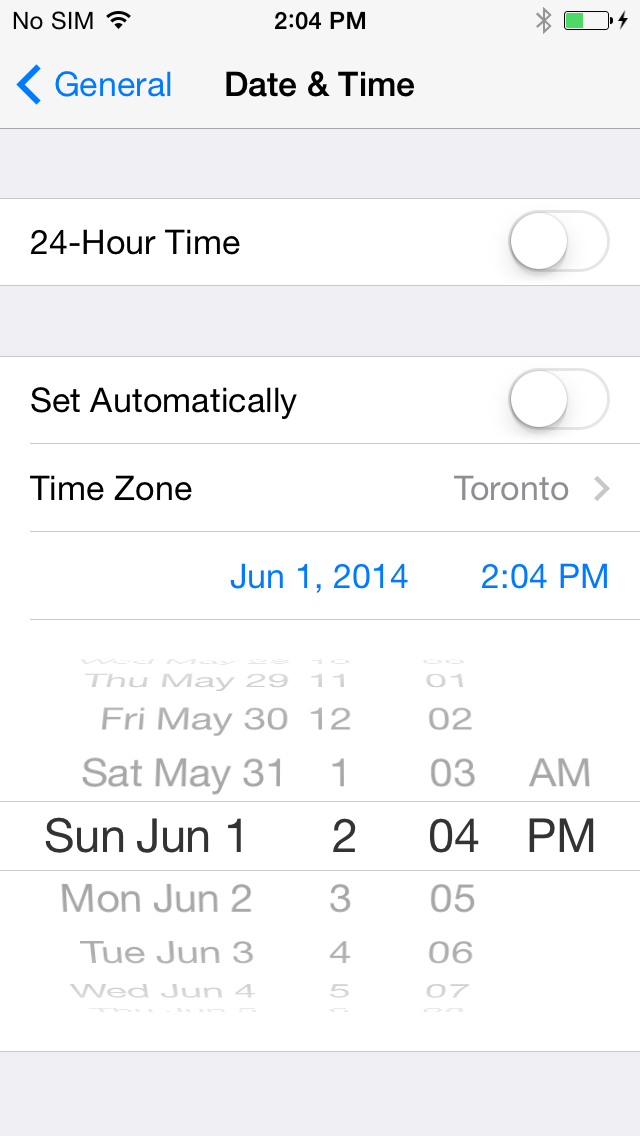
A guide will popup asking you adjust your date back in time.


 Tap Settings on your Springboard then choose the General menu.


Select Date & Time from the General menu then tap the Set Automatically switch to turn it to the OFF position.


Press the date and time that appears and scroll to move the date back to June 1st, 2014.

Step Five
Once the date has been adjusted, the Pangu app will begin the jailbreak process.
 A new Pangu icon will appear on your Springboard. Tap the icon then press Continue when prompted to confirm the launch of the application.

**If you wait too long to launch the app on your SpringBoard, you will see a red message on the Windows app and will need to start over.

Step Six
The Pangu utility will continue with the jailbreak. Make sure to keep the device connected and do not close the app.


 Step Seven
Once complete your iPhone will reboot and you will see Cydia on your desktop!


*A big thanks to the Pangu team and all the others who contributed to this jailbreak.

Where to Download Pangu Jailbreak From???

Where to find links to download Pangu, a tool released to jailbreak the iPhone, iPad, and iPod touch.

Pangu 1.0 (Windows): Pangu_v1.0.exe.zip [Mirror 1] [Mirror 2]


Pangu Untethered Jailbreak of iOS 7.1.1 Has Been Released!

A team of Chinese hackers have released Pangu, an untethered jailbreak of iOS 7.1.1.

Currently a jailbreak utility is only available for Windows. We will be testing the jailbreak and providing instructions on how to jailbreak your device if the release is legitimate.

The team credits i0n1c training for the infoleak bug. I0n1c has said, "if pangu team releases a public jailbreak with vulnerabilities disclosed to them during my training I consider this in no way okay."

Update:
We have confirmed that the utility does in fact jailbreak you device; however, we have yet to confirm whether there are any security risks to performing the jailbreak. Please do not install it until we have confirmed it is safe to do so.

Update x2:
iH8Sn0w confirms that there is no spyware. "Aside from the piracy store and enterprise certificate… The http://pangu.io jailbreak does not have “spyware” or malicious trails."

Download Pangu 1.0 for Windows from here. We will be posting jailbreak instructions shortly.

Piracy Warning:
There is a checkbox in the utility. If you leave it checked, a piracy app store will be installed. You should uncheck the box before attempting a jailbreak.

Tuesday, June 10, 2014

Skype 5.0 now available!

Just one day after teasing a brand new design for Skype for iOS, Microsoft has released the updated app on the App Store for iPhone. Our own Christian Zibreg walked through several of the new features, ranging from a sleeker user interface and faster performance to cross-platform read receipt syncing and the ability to start group chats from the hub. Details ahead…


Sunday, March 16, 2014

Upcoming update for whatsapp! VoIP calling??


As you know, the world’s most popular mobile messaging software, WhatsApp, is being purchased by the social networking giant Facebook for a staggering $16 billion.

WhatsApp previously promised to introduce VoIP calling in the second quarter of this year, a move poised to turn the tables on competition like Viber, now owned by Rakuten.

While Viber last December unveiled a new Skype-like Viber Out feature for making low-cost outgoing calls to international mobile and landline numbers, a set of screenshots leaked on Friday purportedly depicting what WhatsApp’s VoIP calling will look like in its iPhone application, a free download from the App Store…

According to Italian Apple blog iPhoneItalia (Google translate), WhatsApp’s VoIP calling interface is heavily reminiscent of the new-look Phone app in the latest iOS 7.1 update, down to the circular End Call button. When a VoIP call comes in, the app displays your caller’s name, along with their photo and phone number.

Source :- idownloadblog

Saturday, February 1, 2014

FIX:- iPhone, iPad or iPod touch randomly resprings after jailbreaking iOS 7

 Issue: iPhone, iPad or iPod touch randomly resprings after jailbreaking iOS 7.

Potential solutions:

  • Reboot your iOS device
  • Uninstall or update any incompatible or problematic tweaks
  • Reinstall Cydia Substrate
  • Restore your iOS device (and re-run evasi0n7)
    • Having an iTunes or iCloud backup is recommended
    • Keep in mind that you may be restoring to a non-jailbroken iOS version
    • Restoring should only be necessary as a last measure

Monday, January 13, 2014

How to Change the Cydia ICON for iOS 7?


Despite the fact that Cydia was recently updated for iOS 7, it didn’t come with a new icon to look native on the new firmware generation. Although this is probably because a final icon is being worked out, if you would like to get an iOS 7-like Cydia icon on your Jailbroken iPhone, iPod Touch or iPad then you will be glad to know that it is now possible thanks to the work of some talented designers.


 Here's  how to do it... :)


Step 1) - The first thing you will need to do is install iFile to your iPhone, iPod Touch or iPad (Sections > System > iFile). It will say that the version is not certified to be compatible with your device, but it will work.
Alternatively you can use an application on your computer like iFunbox, or iExplorer, but note that afc2add must be installed from Cydia as Evasi0n7 does not install this package automatically like previous Jailbreak tools. Even SSH will work if that’s your thing.

Step 2) - Next on your iOS Device you want to change the Cydia icon on, navigate to this article and download one of the iOS 7 Cydia icon variations shown below.


Step 3) - Now launch iFile and navigate to /var/mobile/Media/DCIM/100APPLE to find the icon you just saved. It should be near the bottom of the list.

Step 4) - Tap the Edit button in the top right hand corner of the screen, then the clipboard icon in the bottom right hand corner of the screen, followed by the Copy/Link button from the popup menu.

Step 5) -  Next go back to the root directory of your device and navigate to /Applications/Cydia.app.

Step 6) - Once again tap the Edit button in the top right hand corner of the screen, then the clipboard icon in the bottom right hand corner of the screen, followed by the Past button from the popup menu.

Step 7) - Now find icon@2x.png in the same folder, tap the blue arrow icon to the right of it and rename it iconbk@2x.png or something similar so that the file won’t be deleted when the new icon takes its place. Tap Done once finished.

Step 8) - Rename the logo you pasted to icon@2x.png by tapping the blue arrow to the right of it and then tap done once finished.

Step 9) - Finally respring or restart your device.
Cydia’s icon should now look flat and match the look and feel of iOS 7. The great thing is this method can be repeated for any app icon of your choice. Let us know how it worked for you in the comments section.

Thursday, February 14, 2013

Top 10 Must Have Repositories for Jailbroken iPhone

Now that the iOS 6.1 untethered jailbreak is finally out, it is safe to say that you should now be ready for some downloading frenzy of jailbreak tweaks and apps. But before you can download and install any free, premium or cracked jailbreak apps, you need to add the proper Cydia repositories. 

Today, we will be providing you the list of the top 10 Cydia sources or repositories for the year 2012.


Thursday, January 31, 2013

Prepare Your Device For The iOS 6.1 Evad3rs Untethered Jailbreak


We now know that the iOS 6.1 Untethered Jailbreak from the Evad3rs will becompatible with all iOS devices that can run iOS 6.1, besides the 3rd generation Apple TV, and we also know when theEvad3rs Jailbreak will likely be released. With all of this information known, it is now time to start preparing for the release of the iOS 6.1 Untethered Jailbreak.
You might be thinking to yourself, well this will be easy! I simply update over-the-air to iOS 6.1 and wait for the Evad3rs to release the Untethered Jailbreak. Unfortunately this isn’t the case and if you update over-the-air you will likely run into some issues. There is a few things that should be done to prepare for the iOS 6.1 Untethered Jailbreak and in this article I will go through them.
First things first you want to make sure that your device is covered by the iOS 6.1 Untethered Jailbreak. This shouldn’t be too hard to determine and we even outlined the compatibility of the Evad3rs Untethered Jailbreak in a previous article, but in case you missed it, here it is one more time. Essentially the only device not supported is the 3rd generation Apple TV.

iPhone 3GS
iPhone 4
iPhone 4S
iPhone 5
iPod Touch 4th Generation
iPod Touch 5th Generation
iPad 2
iPad with Retina Display 3rd and 4th Generation
iPad Mini
2nd Generation Apple TV

When you have ensured that your device is compatible with the iOS 6.1 Untethered Jailbreak you will indeed want to update to iOS 6.1 right away to avoid doing it at the last minute. It is important to keep in mind that you cannot just update to iOS 6.1 over-the-air. As MuscleNerd has explained over Twitter, there are a few reasons you don’t want to do this, which include having different SHSH blobs than a normal restore. For the Evad3rs to support over-the-air updates it would be double the work, which may happen in the future, but for now we strongly suggest you update through iTunes instead. If you have already updated over-the-air thenunfortunately you will need to restore your device to iOS 6.1. As pointed out by Benlego65 in the comments, instead of restoring through iTunes you can SHIFT + Update on Windows or Option + Update on Mac OS X. If this changes we will let you know, but updating to iOS 6.1 through iTunes NOT over-the-air at this time is a must.

Sunday is Funday!!! (Evad3rs hints to release the jailbreak on this sunday) YAY!!

Apple software hackers unveiled a website late Wednesday where the latest untethered jailbreak is expected to be released soon.

Well folks it’s official! The iOS 6 Untethered Jailbreak from the Evad3rshas a name — Evasi0n.

Pod2G sent out a tweet not long ago stating that the website was online and to check it regularly for updates. We learned earlier this week that the iOS 6 Untethered Jailbreak was fully functioning with the iOS 6.1 firmware update Apple pushed on Monday and thus the Evad3rs announced it wouldn’t be long before we would see a public release of the Jailbreak. In fact, MuscelNerd tweeted that it could be as early as this Sunday. It is important to keep in mind however, this is just an estimation and it could be released later or even earlier depending on how private beta testing goes. 


According to the official website the Evasi0n Jailbreaking tool will take 5 minutes of your time, requires a computer running Windows, Mac OS X or Linux and a compatible iPhone, iPod Touch or iPad. You can take a look at the requirements in a bullet form list below…
  • 5 minutes of your time!
  • A computer, running Windows (XP minimum), Mac OS X (10.5 minimum) or Linux (x86 / x86_64)
  • An iPhone, iPad or iPod running iOS 6.0 through 6.1 (you may check in Settings / General / About => Version)
  • A USB cable to connect the device to the computer
Right now the Evad3rs are in the middle of finishing the GUI (graphical user interface) for the tool, once this is complete private beta testing will start and then it will be made public. The individuals working on the iOS 6 Untethered Jailbreak include MuscleNerd, Planetbeing, Pod2G and Pimskeks. Phoenixdev, Surenix, HanĂ©ne Samara, the Chronic Dev-Team and the iPhone Dev-Team also contributed to the Jailbreak. Apparently even Kiki the cat was involved.

Tuesday, January 8, 2013

Syncios - The best iPhone manager

Syncios is a free yet powerful iPod to PC transfer software which can help to transfer App, Music, Photo, Video and Ebook from PC to iPod/iPhone/PC without jailbreaking your phone.


Download